Congratulations! If you're on this page, you already have one of the Genesis algorithms. Follow the simple steps below to start automated trading in minutes.
Step 1: Preparing the MetaTrader 5 Terminal
Before copying the algorithm, you must enable automated trading and license verification in your terminal.
- Open MT5.
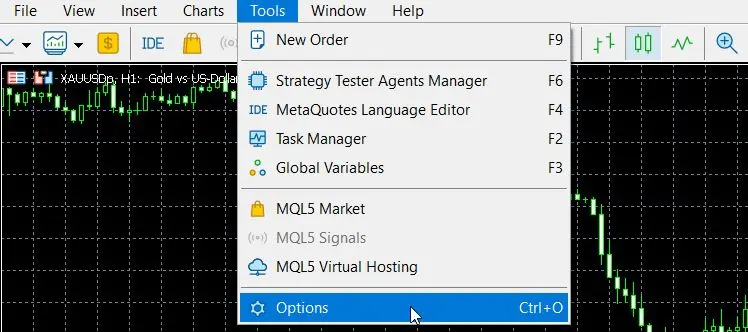
- Go to the Tools -> Options menu.
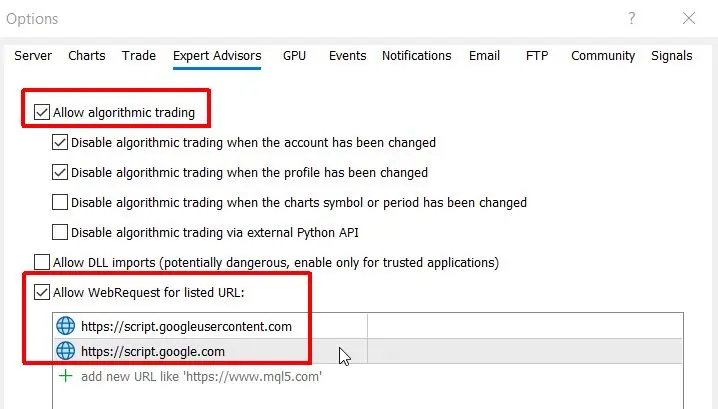
- Select the Expert Advisors tab.
- Check the following:
- Allow Algorithmic Trading
- Allow WebRequest for listed URL
- Very Important: Add the following two URLs to the list for license verification:
https://script.google.com and https://script.googleusercontent.com
Step 2: Placing the EA Files
- Double-click the downloaded file to automatically load the EA into MetaTrader, OR click File -> Open Data Folder.
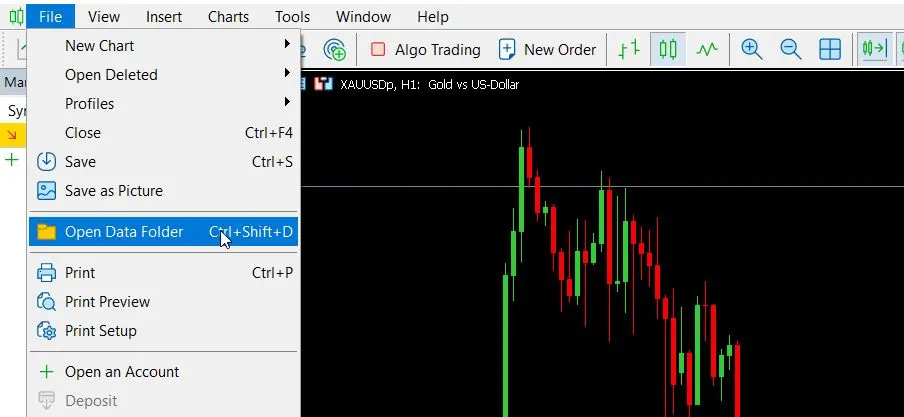
- Navigate to the MQL5 -> Experts folder.
- Copy the
.ex5 file received from us here.
- Restart MT5, or right-click the 'Expert Advisors' folder in the 'Navigator' window and select Refresh. Genesis Gold Quantum will appear in the algorithm list.
Step 3: Starting the EA and Enabling Execution
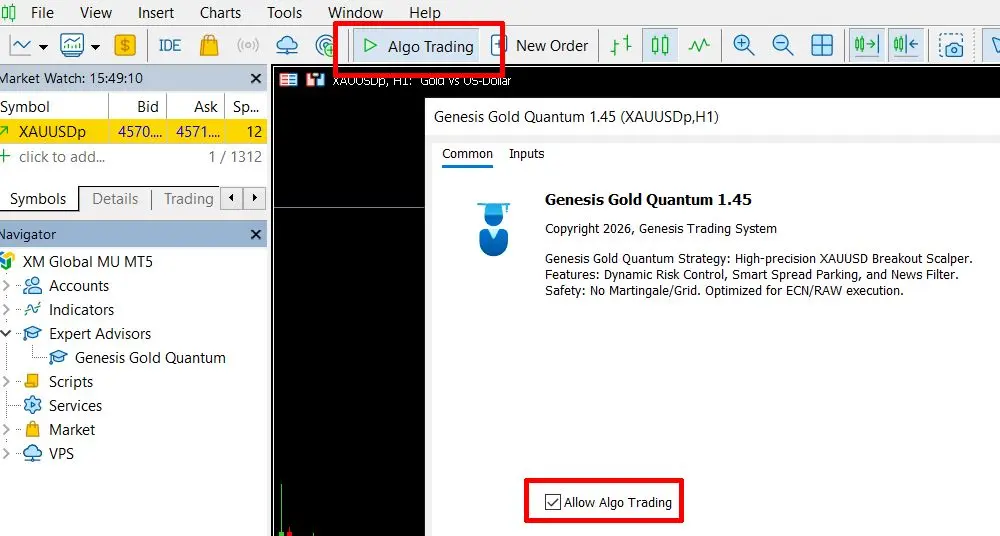
- Double-click the EA name (Genesis Gold Quantum), or drag it onto the chart of the selected currency pair, as shown in the picture.
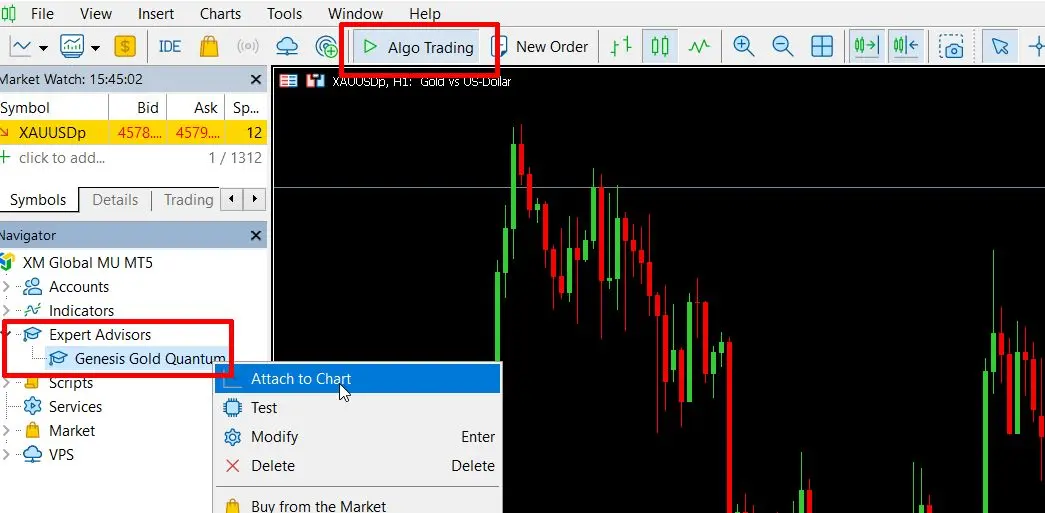
- In the pop-up window, on the Common tab, check again that Allow Algo Trading is enabled, otherwise the algorithm cannot trade.
Step 4: License Activation and Settings (Inputs Tab)
In the same pop-up window, switch to the Inputs tab. First, you must authenticate the software based on your license type:
- A) Free Version (For those who opened an account with our partner broker): If you are using the free EA at a partner broker, please provide the e-mail address used for broker registration as authentication.
- B) Paid (Lifetime) Version: To run the premium version, copy the unique Product Key received after purchase into the license field.
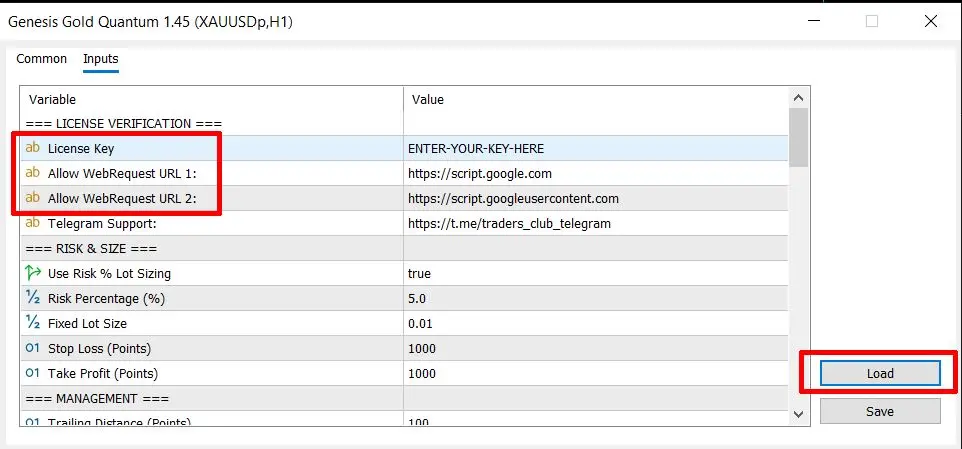
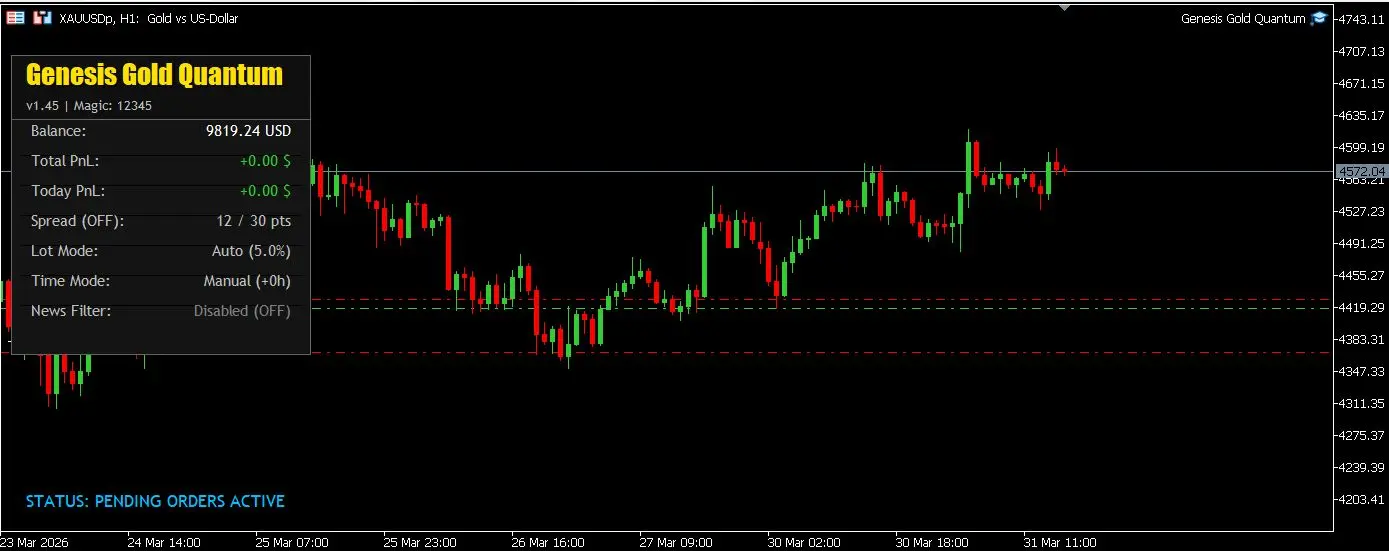
Finally, load the optimized .set file (Click the "Load" button at the bottom right and select the one matching your risk profile), and press OK! If everything is correct, the EA will start with a small dashboard in the upper left corner of the chart.
Step 5: Stable Execution with VPS Server
To ensure the algorithm truly trades every market opportunity (runs 24 hours a day) and to reduce losses from technical anomalies to zero, it is strongly recommended to use a Virtual Private Server (VPS) for trading.
- If you turn off your desktop computer, Windows freezes, or the internet goes out, the EA will stop suddenly. This is prevented by a VPS (which is an always-online computer in a professional data center).